
Claude Desktop
Beta
The Flowcase MCP server is in beta and is available on request. Request access to the MCP beta.
This guide adds the Flowcase MCP server to Claude Desktop as a custom extension, so Claude can search and work with your CV data.
The extension authenticates with an API key. See MCP Overview for more on authentication.
1. Create an API key
You must use an API key with the Read only Administrator access level. Only administrators can create API keys.
- Log in to your Flowcase account.
- Go to
https://<subdomain>.flowcase.com/settings#/apikeys. - Create an API key with the Read only Administrator access level.
See Authentication & Security for more on API keys.
2. Upload the extension to Claude
- Download the Flowcase extension, flowcase.mcpb.
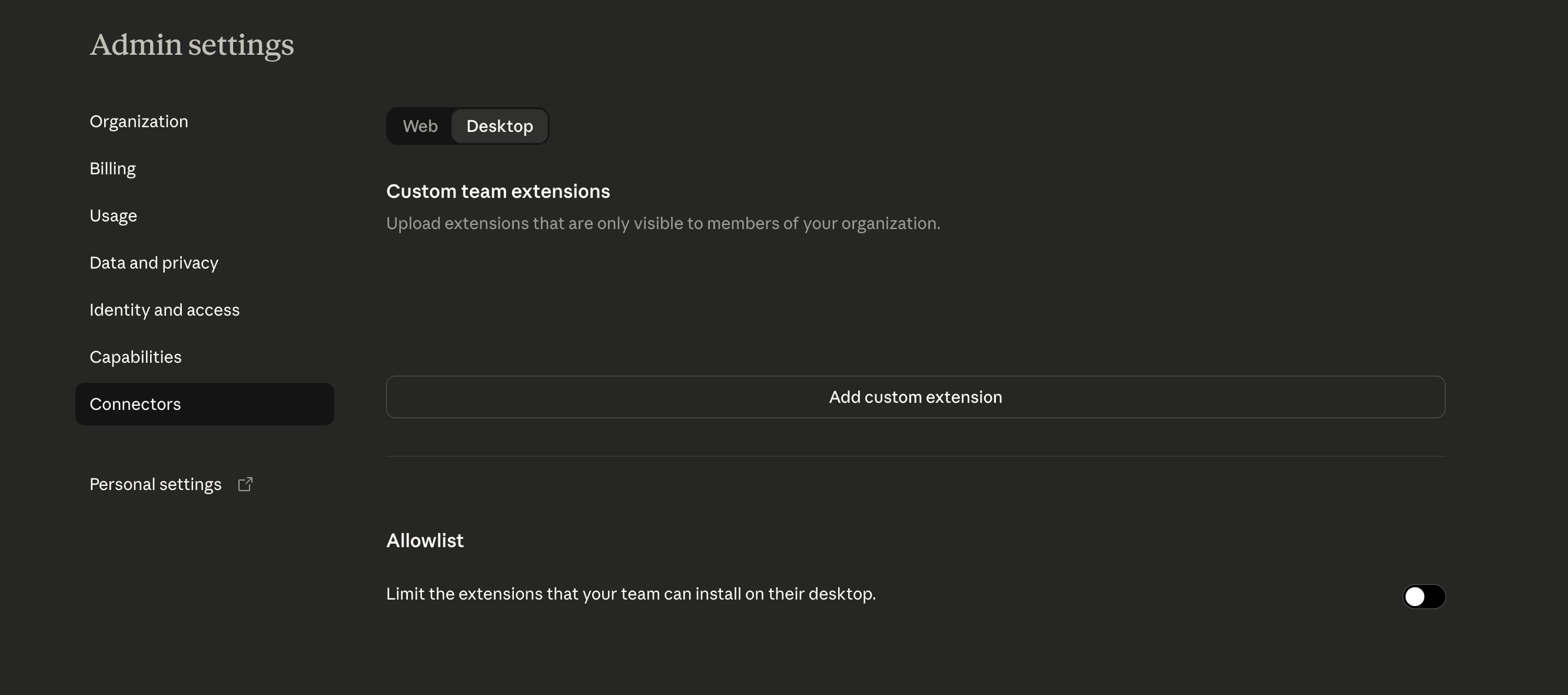
- Open the Claude admin settings for connectors at claude.ai/admin-settings/connectors.
- Choose the Desktop tab.
- Click Add custom extension, then select
flowcase.mcpb.
3. Configure the extension
When you install the extension in Claude Desktop, it asks for two settings:
| Setting | Value |
|---|---|
| API key | The API key you created in step 1. Enter the key on its own: the extension adds Bearer to it. |
| MCP Endpoint | https://<subdomain>.flowcase.com/mcp |
Replace <subdomain> with the subdomain you use to access Flowcase.